Notes
The block-based note editor, its block types, formatting, and organization.
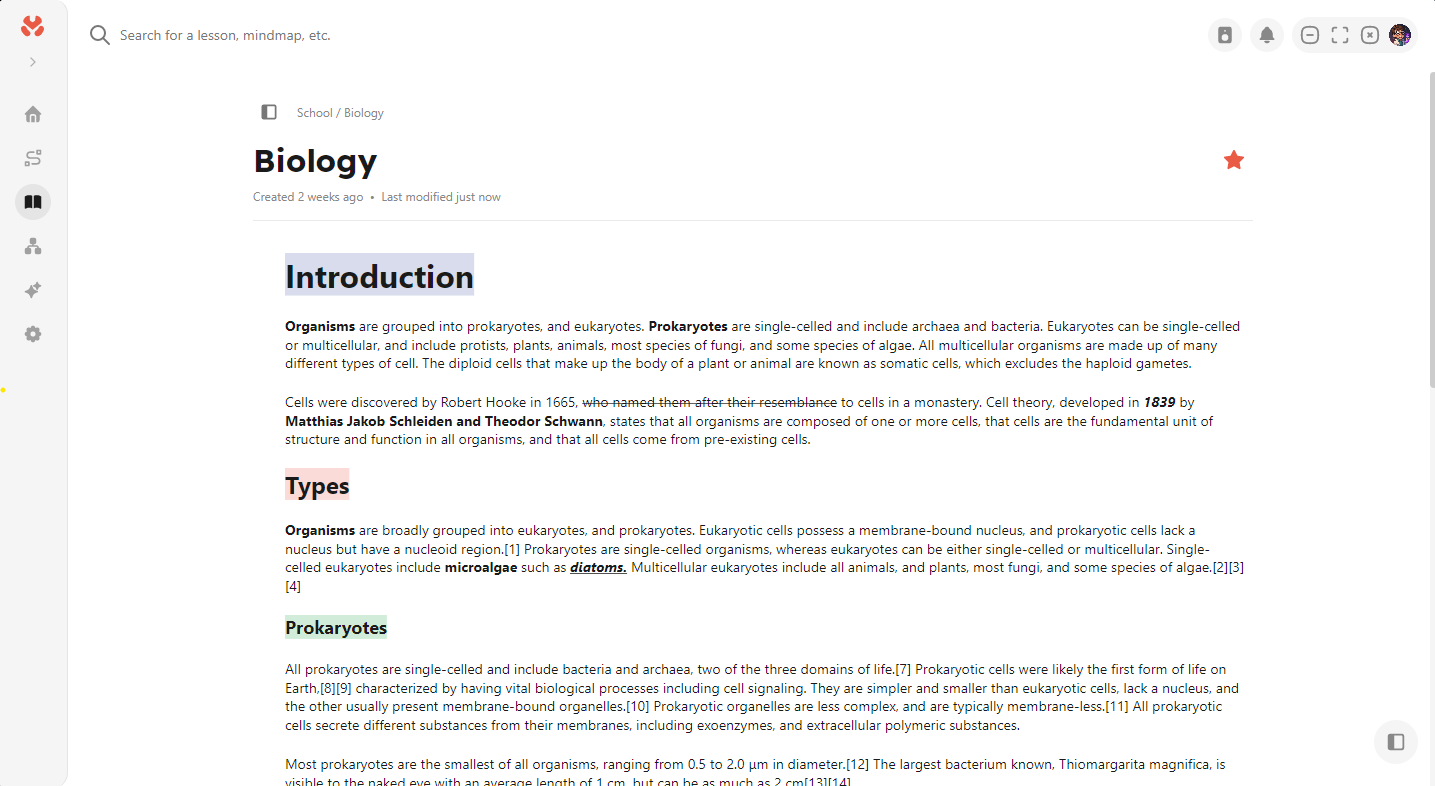
Notes are built from blocks. Each paragraph, heading, image, or equation is a block that you can move, convert, and format on its own. Notes save automatically about half a second after you stop typing. There is no save button.
Block types
Type / in an empty block to open the block menu, or type the markdown shortcut directly:
| Block | Shortcut |
|---|---|
| Text | |
| Heading 1 to 4 | # to #### followed by a space |
| Bullet list | -, *, or + |
| Numbered list | 1. |
| Checklist | [] |
| Quote | > |
| Code | ``` |
| Divider | --- |
| Image | |
| Equation | see Math and equations |
| Sketch | see Sketch diagrams |
| Two columns | |
| Page |
Code blocks have syntax highlighting with a selectable language. Two-column blocks place two block stacks side by side with an adjustable split. A page block embeds another note inside the current one; click it to open the nested note, and use the breadcrumb above the title to go back up.
Tables are not supported in the note editor.
Inline formatting
Select text to open the formatting toolbar, or use shortcuts. Ctrl is Cmd on macOS.
| Format | Shortcut |
|---|---|
| Bold | Ctrl+B |
| Italic | Ctrl+I |
| Underline | Ctrl+U |
| Strikethrough | Ctrl+Shift+S |
| Highlight | Ctrl+Shift+H |
| Link | Ctrl+Shift+L |
| Subscript | Ctrl+, |
| Superscript | Ctrl+. |
The toolbar can also turn a selection into an inline equation or an inline fraction.
Typing replacements
Some character sequences convert as you type: -> becomes an arrow, ... becomes an ellipsis, (c) becomes the copyright sign, and commands like \pi, \sum, \leq, and \approx become the matching symbol. Typing \3/7 inserts a compact fraction. The full list lives in the editor itself; these replacements only apply while typing, never to existing text.
Images
Paste an image from the clipboard or drag an image file into a note. Mnemo copies it into its own data folder, so the note does not break if the original file moves. Images can be resized, aligned, and captioned.
Organizing notes
The notes sidebar holds your notes and folders. Folders nest. Drag items to move or reorder them. The context menu on each item offers new note, new folder, rename, duplicate, export, and delete. Deleting a folder deletes everything inside it. Star a note to pin it to the Favorites section at the top of the sidebar.
Find and replace
The editor has an in-note find panel with match highlighting and replace.
Spellcheck
Spellcheck uses local dictionaries for English, German, Spanish, and Norwegian. Enable or disable it and pick languages under Settings → Editor. Words you add to your personal dictionary are kept per language.
Undo history
Undo and redo work per note and cover both typing and structural changes such as moving or deleting blocks. The history is cleared when you switch notes and is not kept across restarts.
Getting notes out
Notes export to Markdown, PDF, and the .mnemo package format. See Import and export.